iDempiere Report Modes

This document aims to describe the different reporting modes that can be used in iDempiere, providing flexibility when building complex results.
Among the most well-known techniques are:
Extensive information about these two techniques can be found in the iDempiere Wiki and various community forums.
We will not go into detail about these two conventional modes. However, we will show alternative and advanced methods that use Jaspersoft, Java code, ZK components, and Apache POI libraries — all of which are explained in the following sections.
Alternate advance methods:
Sources are located at:
- iDempiere (source): idempiere
- Localizations and plugins: Amerpsoft-iDempiere-community
⚙️ Native Framework
The native iDempiere technique for creating reports and documents (such as invoices, purchase orders, etc.) is called Application Dictionary Reporting or ADempiere Reporting Engine.
Concept and Components
This reporting engine does not rely on a scripting language such as Groovy (used by JasperReports). Instead, it leverages the metadata structure of iDempiere’s Application Dictionary (AD).
The key components of this technique are:
- Report & Process (
AD_Process) – Defines the business logic (in Java) to retrieve the data. This class is linked to a parameter window (Report & Process). - Report View (
AD_RV_...) – A database view that consolidates the data required for the report. This is crucial since the AD reporting engine operates directly on this view. - Print Format (
AD_PrintFormat) – The heart of this technique. It allows designing the report layout (fields, labels, groupings, totals) entirely through the iDempiere user interface — without editing any external files (XML/JRXML).
In short, the native technique consists of configuring Print Formats over Report Views, controlled by a Process within the Application Dictionary.
Important Distinction
When referring to iDempiere’s "native technique," it specifically means designing through the Print Format mechanism within the Application Dictionary.
📄 Jaspersoft
Overview of Reports in iDempiere with Jaspersoft
The integration of Jaspersoft (JasperReports) in iDempiere is the standard mechanism for creating reports with complex design, advanced visualization, charts, and professional PDF/Excel/HTML output. It is the engine used for most transactional documents and advanced financial reports, complementing the native Application Dictionary Reporting Engine.
Jaspersoft - Integration Workflow
The workflow for creating and using a Jaspersoft report in iDempiere involves two main domains: external design and internal configuration.
1. Report Design (External Environment)
The report is designed using Jaspersoft Studio, the visual designer for JasperReports.
- JRXML: The designer creates a
.jrxmlfile — an XML source file that defines the layout, placement of fields, fonts, charts, and styles. - Data Source: The designer uses a SQL query or a Report View (
AD_RV_...) to retrieve data from iDempiere. The query must be compatible with iDempiere’s database structure. - Compilation: The
.jrxmlfile is compiled into a binary.jasperfile (the ready-to-run report) that will later be uploaded to iDempiere.
2. Configuration in iDempiere (Application Dictionary - AD)
To execute and display the report, the .jasper file must be registered and associated with a process.
| Component | Configuration | Purpose |
|---|---|---|
Report & Process (AD_Process) | A new process is created (Action = P). | Defines the parameter input window for the user (filters). |
| Parameters | Define the input fields that will be passed to Jasper (e.g., C_BPartner_ID, DateFrom). | Enables user interactivity. |
Print Format (AD_PrintFormat) | Links the AD_Process to a PrintFormat. | Acts as the container for the .jasper file. |
| .jasper File | The compiled file is uploaded into the Jasper Report field of the Print Format. | Connects the external design to internal execution. |
Jaspersoft - Execution and Visualization
When the user selects the menu option associated with the process:
- iDempiere executes the business logic of the process (if defined).
- The system collects the input parameters provided by the user.
- The SQL query defined in the
.jasperreport is executed, passing those parameters (P_DateFrom,P_OrgID, etc.). - The JasperReports engine generates the output (PDF, XLSX, etc.).
- The result is displayed in the Jasper Viewer (
ZkJRViewer), which opens in a new application tab (GridTab) within iDempiere.
🧩 Jasper Java Class Pojo
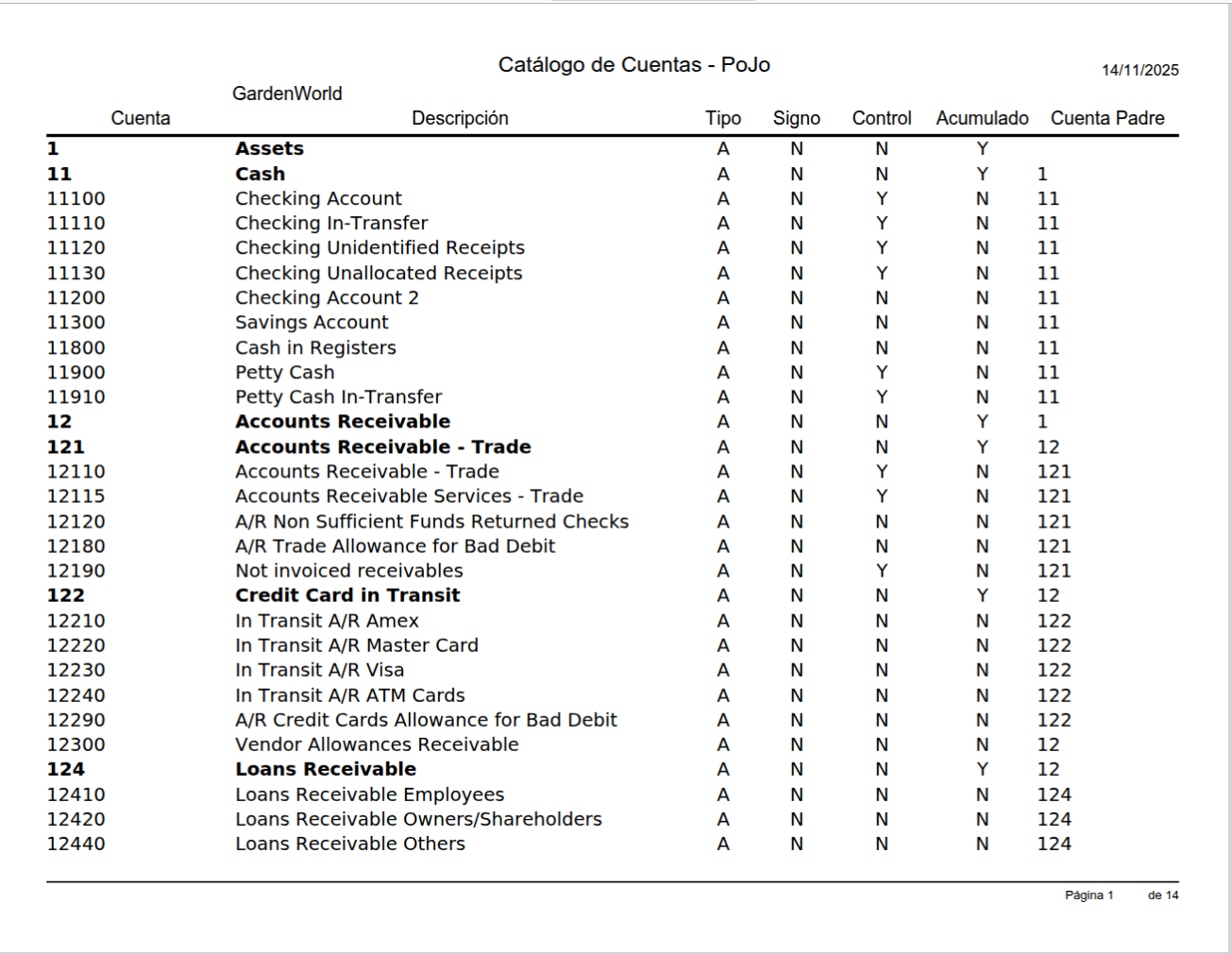
This sample report displays the account elements configured for a specific client within the accounting schema.
It is based on a Java Class POJO. It reads data from the database using a Java Class DataPopulator.
The file: src/org/amerp/reports/jasper/AccountElements_Tree/AccountElements_Tree_Pojo.jrxml is not attached to an AD Process, it is read directly from the Filesystem.
Parameters are read from SvrProcess and injected into the Jaspersoft File.
Application Dictionary (AD) Process Configuration
To make this Java Class POJO report executable from the iDempiere/ADempiere menu, you must register it as a Process and/or Report in the Application Dictionary. And then create a menu option.
Creating the Process
| Field in "Process & Report" Window | Value |
|---|---|
| Name | Amfin Account Elements Jasper Java Class Pojo |
| Search Key (Value) | AmfinAccountElementsJasperJavaClassPo |
| Classname | org.amerp.reports.jasper.AccountElements_Tree.AccountElements_Tree_Pojo |
| Procedure Type | Java |
| Report | (Check the box) |
Parameters
| Parameter | Code / Column | Detailed Explanation |
|---|---|---|
| Client / Tenant | AD_Client_ID | This parameter is critical for data security and scope. It limits the report execution to data belonging exclusively to the selected company or group of companies. In a multi-tenant environment, this ensures that only the account elements relevant to the correct organization are processed. |
| Accounting Schema | C_AcctSchema_ID | This is the most crucial parameter for defining the report's structure. The Accounting Schema acts as a template, determining how an organization records its transactions. By selecting it, the report knows which: • Chart of Accounts (CoA) to use. • Accounting rules (e.g., accrual vs. cash basis). • Currency and specific elements (accounts, dimensions) must be included in the report. |
Parameters screen

Java Class
File: AccountElements_Tree_Pojo.java
Java class is a classic SvrProcess:
public class AccountElements_Tree_Pojo extends SvrProcess implements ProcessCall, ClientProcess{
Parameters prepare (prepare()):
    @Override
    protected void prepare() {
        ProcessInfoParameter[] para = getParameter();
        for (ProcessInfoParameter pp : para) {
            String name = pp.getParameterName();
            if (name.equals("AD_Client_ID")) {
                p_AD_Client_ID = pp.getParameterAsInt();
            } else if (name.equals("C_AcctSchema_ID")) {
                p_C_AcctSchema_ID = pp.getParameterAsInt();
            }
        }
        // Si no se pasaron como parámetro, obtener del contexto actual de iDempiere
        if (p_AD_Client_ID == 0) {
            p_AD_Client_ID = Env.getAD_Client_ID(Env.getCtx());
        }
        // Para C_AcctSchema_ID, si no viene como parámetro, podría requerir lógica para obtener el predeterminado
        // o ser un parámetro obligatorio en la ventana del proceso. Aquí lo dejamos como 0 si no se pasa.
    }
Generating Report doIt():
- Step 0: Copy files to temporary directory on server.
        // Lista de recursos a copiar
        String[] resourcesToCopy = new String[]{
            "org/amerp/reports/jasper/AccountElements_Tree/AccountElements_Tree_Pojo.jrxml",
            "org/amerp/reports/jasper/AccountElements_Tree/AccountElements_Tree.properties",
            "org/amerp/reports/jasper/AccountElements_Tree/AccountElements_Tree_es.properties",
            "org/amerp/reports/jasper/AccountElements_Tree/AccountElements_Tree_fr.properties"
            // Si hay imágenes o subreports, añádelos aquí
        };
         for (String resource : resourcesToCopy) {
        	jasperUtils.copyResourceToTmp(resource, tmpFolder);
        }
- Step 1: Get Data for report from DataPopulator class.
List<AccountElement> reportData = DataPopulator.getAccountElementsFromiDempiereDB(p_AD_Client_ID, p_C_AcctSchema_ID);
- Step 2: Compile Jasper file.
        try (InputStream reportStream = new FileInputStream(jrxmlPath)) {
            jasperReport = JasperCompileManager.compileReport(reportStream);
            log.info("Archivo .jasper cargado exitosamente.");
        } catch (Exception e) {
            log.log(Level.SEVERE, "Error al cargar y/o compilar el archivo .jrxml desde: " + jrxmlPath, e);
            throw e; // Relanza la excepción para que iDempiere la maneje
        }
- Step 3: Crear JRBeanCollectionDataSource.
        JRBeanCollectionDataSource dataSource = new JRBeanCollectionDataSource(reportData);
        log.info("JRBeanCollectionDataSource creado con " + dataSource.getRecordCount() + " registros.");
- Step 4: Prepare Parameters.
        Map<String, Object> parameters = new HashMap<>();
        parameters.put("AD_Client_ID", p_AD_Client_ID);
        parameters.put("C_AcctSchema_ID",p_C_AcctSchema_ID);
        parameters.put(JRParameter.REPORT_RESOURCE_BUNDLE, ResourceBundle.getBundle(
        	    "org.amerp.reports.jasper.AccountElements_Tree.AccountElements_Tree",
        	    Locale.getDefault()
        	));
- Step 5: Fill report and call JRViewer.
        try {
            jasperPrint = JasperFillManager.fillReport(jasperReport, parameters, dataSource);
            log.info("Informe de JasperReports llenado exitosamente.");
        } catch (JRException e) {
            log.log(Level.SEVERE, "Error al llenar el informe de JasperReports.", e);
            throw e; // Relanza la excepción
        }
	....
        try (Connection conn = DB.getConnectionRO()) {
            // export to viewer
            processInfo = getProcessInfo();
            printInfo = new PrintInfo(processInfo);
			// view the report
			JRViewerProvider viewerLauncher = Service.locator().locate(JRViewerProvider.class).getService();
			viewerLauncher.openViewer(jasperPrint, processInfo.getTitle(), printInfo);
        }
Sample report
📄 Jasper Java Class Standard
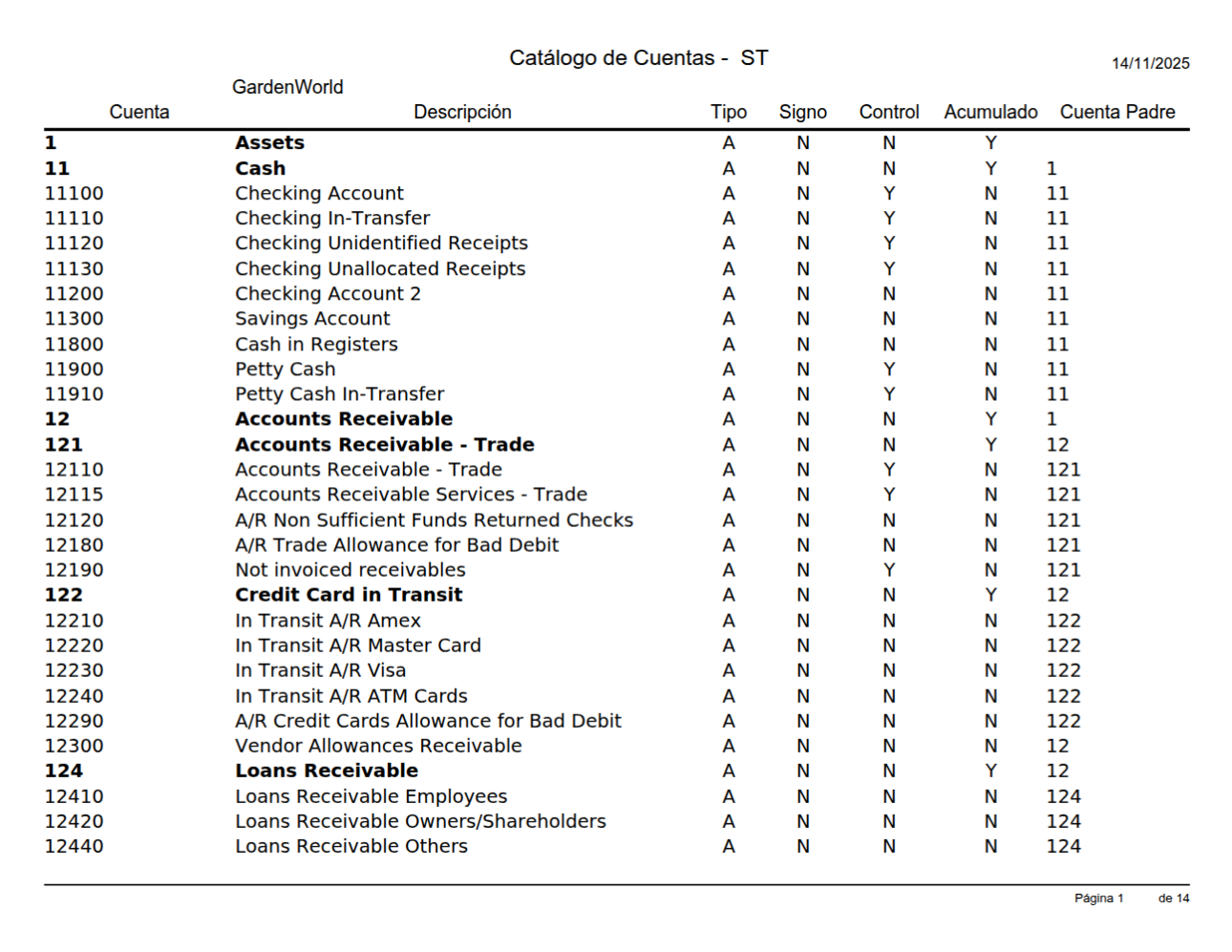
This sample report displays the account elements configured for a specific client within the accounting schema.
It is based on a Java Class Std. It reads data using an SQL Query defined within the .jrxml file.
The file: src/org/amerp/reports/jasper/AccountElements_Tree/AccountElements_Tree_Std.jrxml is not attached to an AD Process, it is read directly from the Filesystem.
Parameters are read from SvrProcess and injected into the Jaspersoft File.
Application Dictionary (AD) Process Configuration
To make this Java Class Standard report executable from the iDempiere/ADempiere menu, you must register it as a Process and/or Report in the Application Dictionary. And then create a menu option.
Creating the Process
| Field in "Process & Report" Window | Value |
|---|---|
| Name | Amfin Account Elements Jasper Java Class Standard |
| Search Key (Value) | AmfinAccountElementsJasperJavaClassStd |
| Classname | org.amerp.reports.jasper.AccountElements_Tree.AccountElements_Tree_Std |
| Procedure Type | Java |
| Report | (Check the box) |
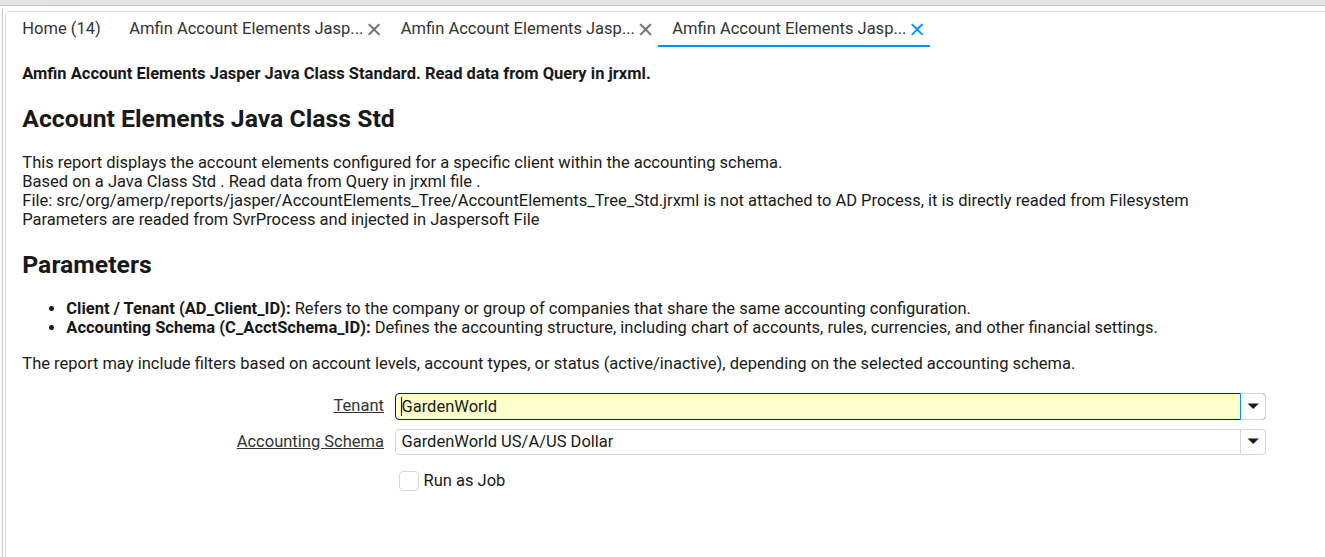
Parameters
- Client / Tenant (
AD_Client_ID): Refers to the company or group of companies that share the same accounting configuration. - Accounting Schema (
C_AcctSchema_ID): Defines the accounting structure, including chart of accounts, rules, currencies, and other financial settings.
The report may include filters based on account levels, account types, or status (active/inactive), depending on the selected accounting schema.
Parameters screen
Java Class
File: AccountElements_Tree_Std.java
Java class is a classic SvrProcess:
public class AccountElements_Tree_Std extends SvrProcess implements ProcessCall, ClientProcess {
Parameters prepare (prepare()):
        for (ProcessInfoParameter param : pip) {
            String name = param.getParameterName();
            if (param.getParameter() == null)
                ;
            else if ("AD_Client_ID".equalsIgnoreCase(name))
                p_AD_Client_ID = param.getParameterAsInt();
            else if ("C_AcctSchema_ID".equalsIgnoreCase(name))
                p_C_AcctSchema_ID = param.getParameterAsInt();
            else
                log.severe("Unknown Parameter: " + name);
        }
Generating Report doIt():
- Step 0: Copy files to temporary directory on server.
        // Carpeta temporal
        JasperUtils jasperUtils = new JasperUtils();
        String tmpFolder = jasperUtils.getTempFolder();
        // Lista de recursos a copiar
        String[] resourcesToCopy = new String[]{
            "org/amerp/reports/jasper/AccountElements_Tree/AccountElements_Tree_Std.jrxml",
            "org/amerp/reports/jasper/AccountElements_Tree/AccountElements_Tree.properties",
            "org/amerp/reports/jasper/AccountElements_Tree/AccountElements_Tree_es.properties",
            "org/amerp/reports/jasper/AccountElements_Tree/AccountElements_Tree_fr.properties"
            // Si hay imágenes o subreports, añádelos aquí
        };
        // Copiar físicamente cada recurso al tmpFolder
        for (String resource : resourcesToCopy) {
        	jasperUtils.copyResourceToTmp(resource, tmpFolder);
        }
- Step 1: Get Parameters.
        try (InputStream reportStream = new FileInputStream(jrxmlPath)) {
            JasperReport jasperReport = JasperCompileManager.compileReport(reportStream);

            // Parámetros, conexión, etc.
            Map<String, Object> parameters = new HashMap<>();
            parameters.put("AD_Client_ID", p_AD_Client_ID);
            parameters.put("C_AcctSchema_ID",p_C_AcctSchema_ID);
            parameters.put(JRParameter.REPORT_RESOURCE_BUNDLE, ResourceBundle.getBundle(
            	    "org.amerp.reports.jasper.AccountElements_Tree.AccountElements_Tree",
            	    Locale.getDefault()
            	));
- Step 2: Compile, generate and deploy Jasper file.
            try (Connection conn = DB.getConnectionRO()) {
                    jasperPrint = JasperFillManager.fillReport(jasperReport, parameters, conn);
                    // export to viewer
                    processInfo = getProcessInfo();
                    printInfo = new PrintInfo(processInfo);
    				// view the report
    				JRViewerProvider viewerLauncher = Service.locator().locate(JRViewerProvider.class).getService();
    				viewerLauncher.openViewer(jasperPrint, processInfo.getTitle(), printInfo);
           }
Sample report
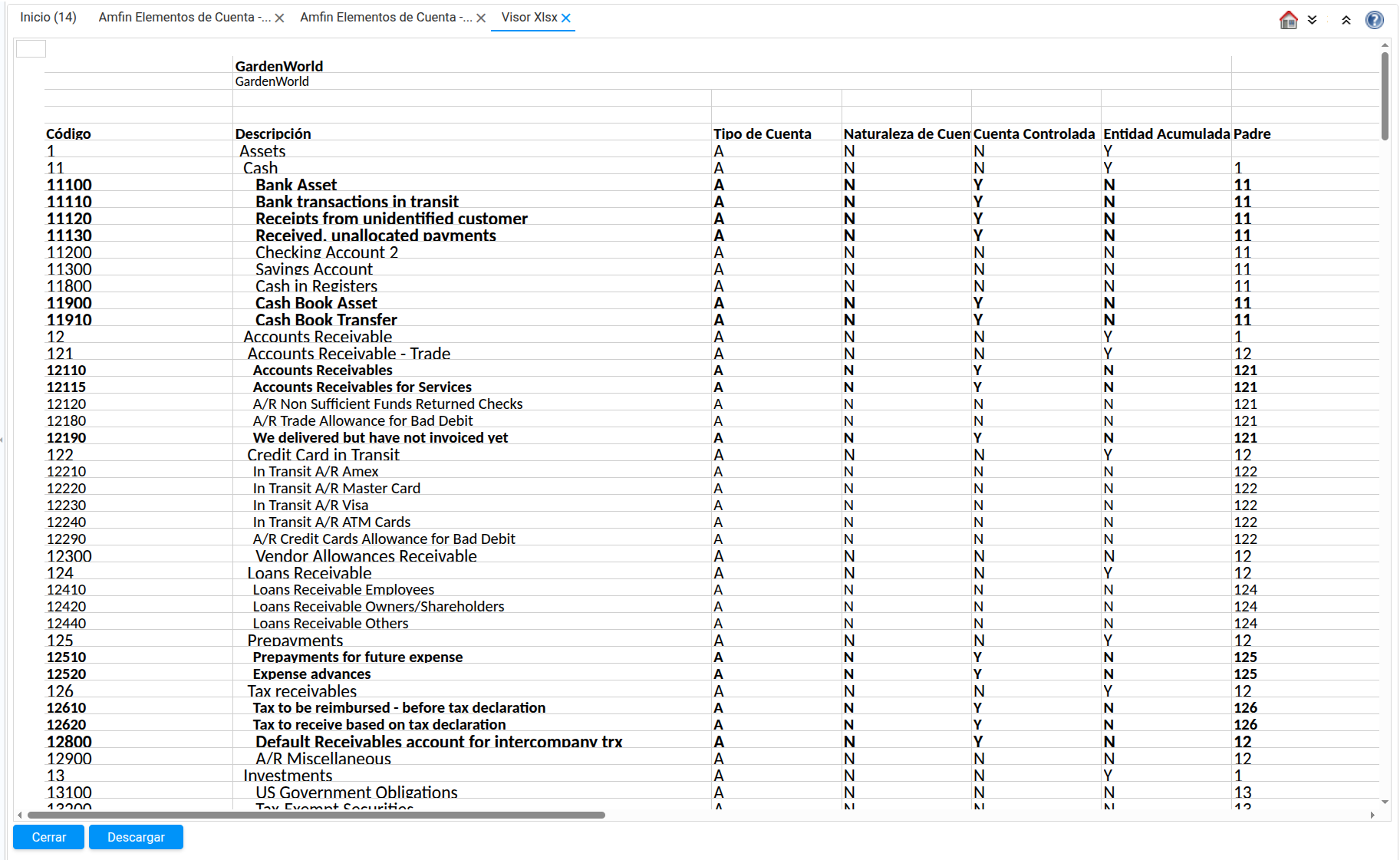
📄 Process Class Xlsx
This sample report displays the account elements configured for a specific client within the accounting schema.
It is based on a Java Class that uses Apache POI XLSX classes to generate an XLSX File. It reads data from the Database using a Java Class DataPopulator.
The report is displayed within an XLSX viewer window, allowing users to easily explore rows and columns in detail. It also provides the option to download the file for viewing in Excel or LibreOffice.
Files & Process
- Main class:
org.amerp.reports.xlsx.AccountElements_Tree_ProcXlsx: Main Class that implementsProcessCallandClientProcess. Reads parameters from the defined AD Process. - Viewer:
src/org/amerp/reports/xlsx/ExcelViewerWindow.java: Viewer for the Xlsx file. - AD Process Name: Amfin Account Elements Process Class Xlsx.
Parameters are read from the associated AD Process and injected into the main class file.
Application Dictionary (AD) Process Configuration
To make this Process Class Xlsx report executable from the iDempiere/ADempiere menu, you must register it as a Process and/or Report in the Application Dictionary. And then create a menu option.
Creating the Process
| Field in "Process & Report" Window | Value |
|---|---|
| Name | Amfin Account Elements Process Class Xlsx |
| Search Key (Value) | AmfinAccountElementsJavaProcXlsx |
| Classname | org.amerp.reports.xlsx.AccountElements_Tree_ProcXlsx |
| Procedure Type | Java |
| Report | (Check the box) |
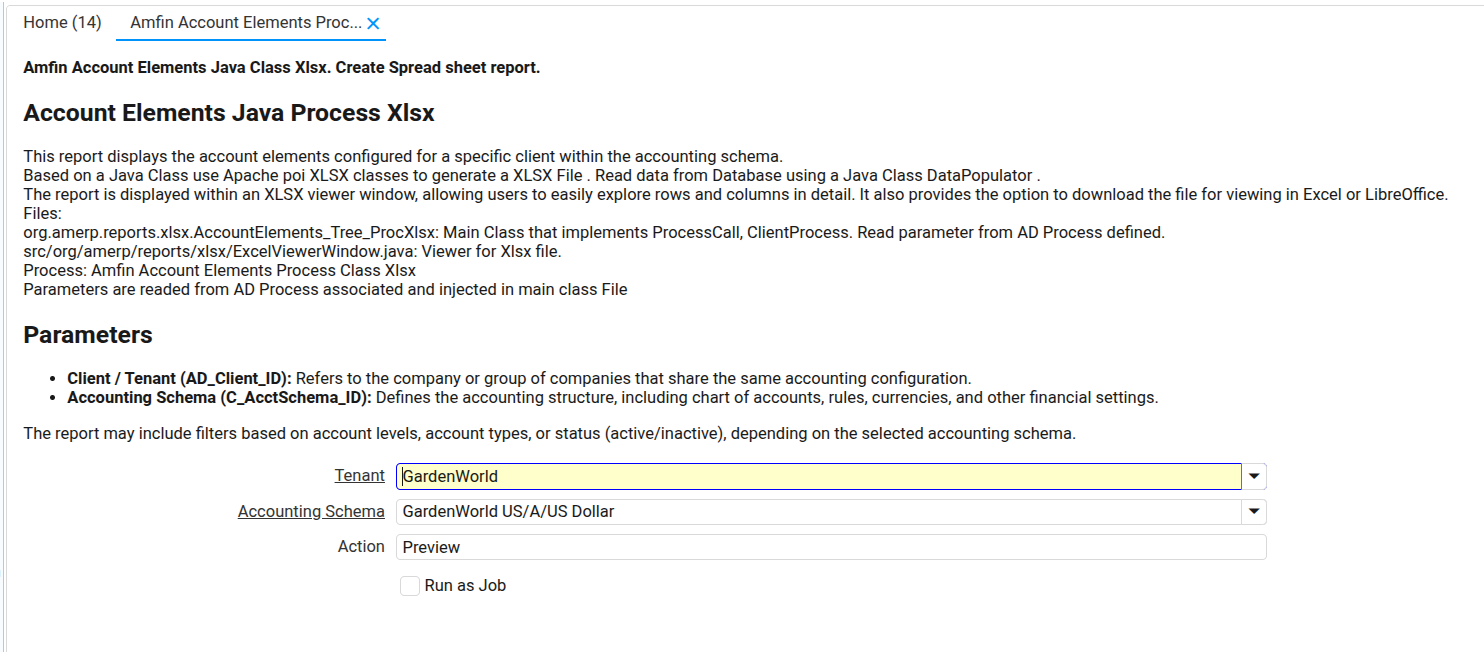
Parameters
- Client / Tenant (
AD_Client_ID): Refers to the company or group of companies that share the same accounting configuration. - Accounting Schema (
C_AcctSchema_ID): Defines the accounting structure, including chart of accounts, rules, currencies, and other financial settings. - Action (
Action): Defines Preview or Download.
The report may include filters based on account levels, account types, or status (active/inactive), depending on the selected accounting schema.
Parameters screen
Java Class
File: AccountElements_Tree_ProcXlsx.java
Java class is a classic Process Call.
public class AccountElements_Tree_ProcXlsx implements ProcessCall, ClientProcess {
Start Process (startProcess(...)):
- Step1: Creates Xlsx (
crearXlsx(..))
        try {
            // Aquí generas tu Excel
            File xlsxFile = crearXlsx(ctx, pInfo, null);
            if (xlsxFile == null)
                return false;
            final String fullPath = xlsxFile.getAbsolutePath();
            pInfo.setSummary("Archivo generado: " + fullPath);
- Step 2: Preview Xlsx (
previewXlsx(xlsxFile))
             if (m_processUI != null && xlsxFile != null) {
            	previewXlsx(xlsxFile);
            }
Create XLsx (crearXlsx(...)):
In this particular case it uses Apache POI Xlsx library.
- Some important imports:
import org.apache.poi.ss.usermodel.Row;
import org.apache.poi.ss.util.CellRangeAddress;
import org.apache.poi.xssf.usermodel.XSSFSheet;
import org.apache.poi.xssf.usermodel.XSSFWorkbook;
import org.apache.poi.ss.usermodel.Cell;
import org.apache.poi.ss.usermodel.*;
import org.amerp.reports.xlsx.util.ExcelUtils;
- Important Viewer method (
openExcelViewerInNewTab(File xlsxFile))
It uses ZK WebUI special viewer attributes to deploy Xlsx file on idempiere TAB.
    private void openExcelViewerInNewTab(File xlsxFile) {
        try {
            // 🖥️ Obtener el escritorio activo
            IDesktop desktop = SessionManager.getAppDesktop();

            if (desktop != null) {
                ExcelViewerWindow viewer = new ExcelViewerWindow(
                		xlsxFile,
                        headers,
                        maxLen,
                        4,
                        50000
                ); // tu constructor

                viewer.setAttribute(Window.MODE_KEY, Window.MODE_EMBEDDED);
                viewer.setAttribute(Window.INSERT_POSITION_KEY, Window.INSERT_NEXT);
                viewer.setAttribute(WindowContainer.DEFER_SET_SELECTED_TAB, Boolean.TRUE);

                desktop.registerWindow(viewer);
                desktop.showWindow(viewer);
                //AEnv.showCenterScreen(viewer);
            }

            log.info("✅ Visor Excel abierto en nuevo tab: " + xlsxFile.getAbsolutePath());
        } catch (Exception e) {
        	log.warning( "❌ Error al abrir formulario de visor Excel\n\r"+e.getMessage());
        }
    }
Sample report